How to Install Linux Mint on New Hardware Using HWE ISOs
Introduction
Linux Mint has shifted to a longer development cycle, with the next release planned for Christmas. This change can cause compatibility issues when you try to install Linux Mint on brand-new hardware, which often requires a newer kernel than what the standard ISO provides. To solve this, the Linux Mint team has introduced special HWE (Hardware Enablement) ISO images. These ISOs include the latest HWE kernel—currently Linux 6.17—to ensure your system works smoothly with the newest chipsets, graphics cards, Wi-Fi adapters, and other components. The team will publish updated HWE ISOs each time a new HWE kernel becomes available. This guide walks you through everything you need to download, create, and install Linux Mint using an HWE ISO on modern hardware.

What You Need
- A computer with new hardware (released in the last 6–12 months) where standard Linux Mint ISOs fail to boot or detect devices
- A stable internet connection
- At least 4GB of RAM (8GB recommended)
- A USB flash drive (4GB or larger) or a blank DVD
- Software to write the ISO to the USB drive (e.g., Rufus on Windows, balenaEtcher on any OS, or dd on Linux)
- Basic familiarity with booting from a USB drive
- Optional: A backup of your existing data if you plan to dual-boot or replace an existing OS
Step-by-Step Instructions
Step 1: Understand What HWE ISOs Are
HWE stands for Hardware Enablement. These are special Linux Mint ISO images that bundle a newer kernel—specifically, a kernel from the Ubuntu HWE stack. For example, the Linux Mint 22.3 HWE ISO includes kernel 6.17. Unlike the standard ISOs that ship with a long-term support (LTS) kernel, HWE ISOs are updated more frequently to support the latest hardware. They are not meant for day-to-day general use; once you install, you can continue to receive HWE kernel updates if you choose to keep the HWE kernel repository enabled.
Step 2: Determine If You Need the HWE ISO
You need the HWE ISO if you experience any of the following when trying to boot the standard Linux Mint ISO:
- Black screen or system freeze after selecting 'Start Linux Mint'
- Missing Wi-Fi or Bluetooth adapters
- Graphics glitches or inability to boot into a graphical desktop
- Keyboard or trackpad not working
- External devices (USB-C docks, NVMe SSDs) not recognized
If your hardware is more than a year old, the standard ISO will likely work fine.
Step 3: Download the Latest HWE ISO
Go to the official Linux Mint download page. Look for the section labeled "Hardware Enablement (HWE) ISOs" or similar. As of this writing, the HWE image is named linuxmint-22.3-hwe-64bit.iso. Download the file (around 2.8GB). For security, verify the SHA256 checksum provided on the site against the downloaded file. On Linux, use sha256sum <filename.iso>. On Windows, use PowerShell's Get-FileHash command.
Step 4: Create a Bootable USB Drive
Insert your USB flash drive (note: all data on it will be erased). Use a tool like balenaEtcher or Rufus:
- For balenaEtcher: Open the application, select the downloaded HWE ISO, select your USB drive, and click 'Flash'. Wait for the process to complete and verify.
- For Rufus (Windows): Choose the device, select the ISO, use default partition scheme (GPT for UEFI, MBR for legacy BIOS), and click 'Start'.
Alternatively, on Linux you can use the command: sudo dd if=linuxmint-22.3-hwe-64bit.iso of=/dev/sdX bs=4M status=progress (replace /dev/sdX with your USB device name).
Step 5: Boot from the USB Drive
Restart your computer and enter the boot menu (usually by pressing F12, F2, Esc, or Del during startup). Select the USB drive as the boot device. You should see the Linux Mint boot menu. Choose Start Linux Mint (the HWE kernel will be used automatically). Wait for the live desktop to load.
Step 6: Test Hardware Compatibility in the Live Environment
Before installing, take a few minutes to test your hardware:
- Connect to Wi-Fi
- Check sound output
- Test USB ports (especially USB-C)
- Verify display resolution and external monitors
- If you have a laptop, test function keys (brightness, volume)
If everything works, proceed to installation. If not, note which components still fail—this may mean you need an even newer kernel (future HWE update).
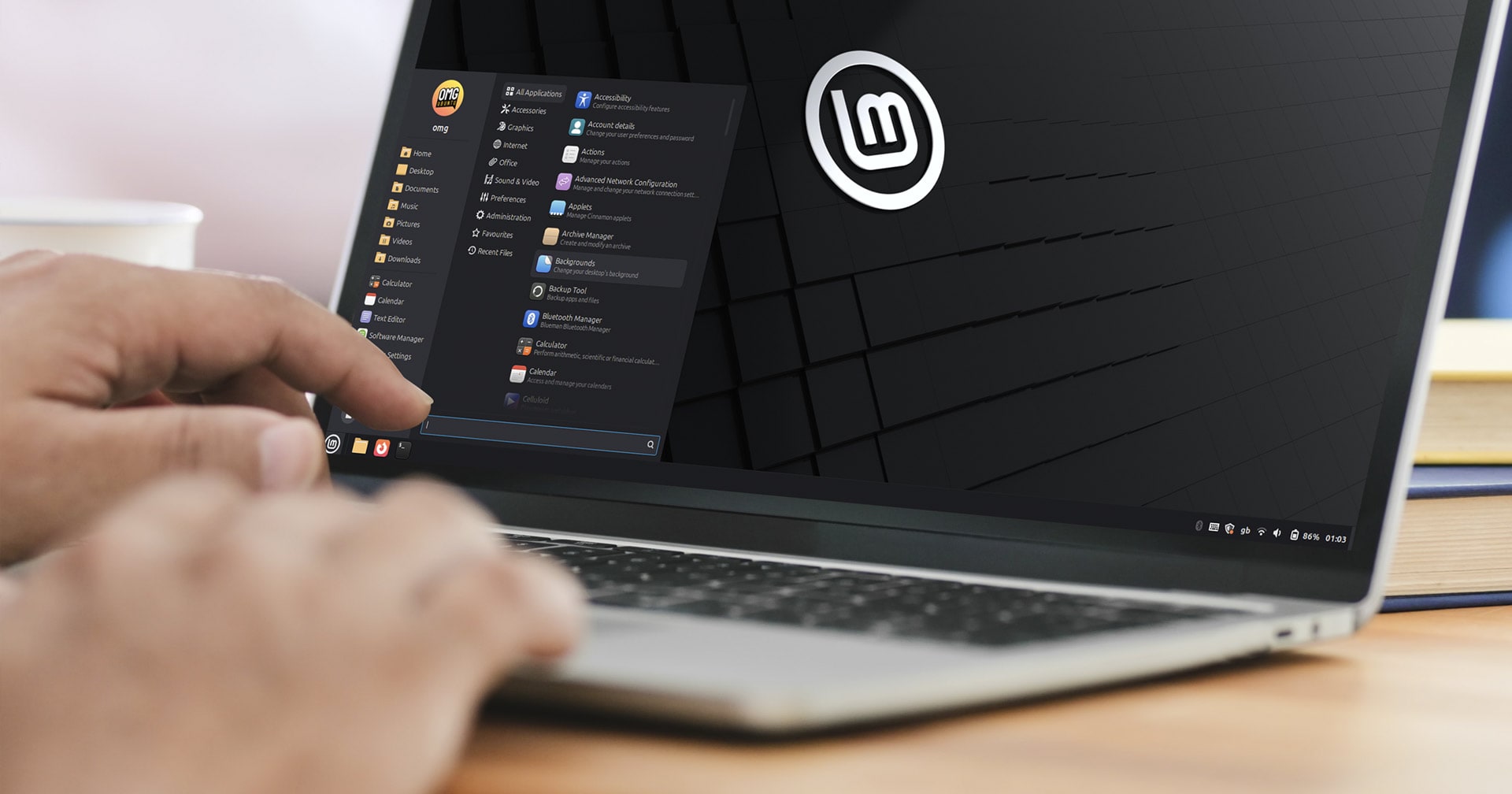
Step 7: Install Linux Mint
Double-click the Install Linux Mint icon on the desktop. Follow the on-screen prompts:
- Choose your language and keyboard layout.
- Select Normal installation (or Minimal if you prefer less pre-installed software).
- For disk setup, choose Erase disk and install Linux Mint (if using the whole drive) or Something else for manual partitioning (e.g., for dual-boot). Tip: If you want to keep your existing system, create partitions manually with a root (
/) and swap (or use a swap file). - Select your time zone and create a user account.
- Confirm the installation and let it complete. The system may restart once finished.
Step 8: Post-Installation: Verify HWE Kernel
After rebooting into your newly installed Linux Mint, open a terminal and run: uname -r. You should see 6.17.x or a similar version. This confirms that the HWE kernel is in use. To keep receiving HWE kernel updates, ensure that the system's repositories include the HWE stack. By default, the HWE ISO configures this. You can check with apt policy linux-generic-hwe-22.04 (adjust codename as needed).
Step 9: Keep Your System Updated
Run sudo apt update && sudo apt upgrade regularly. When a new HWE kernel is released (e.g., kernel 6.19), it will appear in updates. The Linux Mint team will also publish updated HWE ISOs for fresh installations, but you can upgrade directly through the package manager. To manually check for HWE kernel availability, monitor the official tips below.
Tips for a Smooth Experience
- Back up important data before installing, especially if you are partitioning manually.
- If you encounter issues after installation (e.g., Wi-Fi stops working after a kernel update), you can boot into an older kernel from the GRUB menu (Advanced options).
- The HWE ISO is designed for installation only. For regular use, you can switch to the standard LTS kernel by installing
linux-genericand removing HWE packages, but this may break new-hardware support. - Always verify the integrity of the downloaded ISO using checksums to avoid corruption or tampering.
- If your hardware is extremely new (less than 3 months old), you might need to wait for the next HWE kernel update, which typically arrives every 2–3 months. Check the Linux Mint forums or OMG! Ubuntu for announcements.
- Consider using the
mainlinetool to install the latest upstream kernel if the HWE kernel still doesn't support your hardware—but be aware this is not officially supported by Linux Mint.