How to Use AirPods Pro as Hearing Aids and Enable Hypertension Alerts on Apple Watch
Introduction
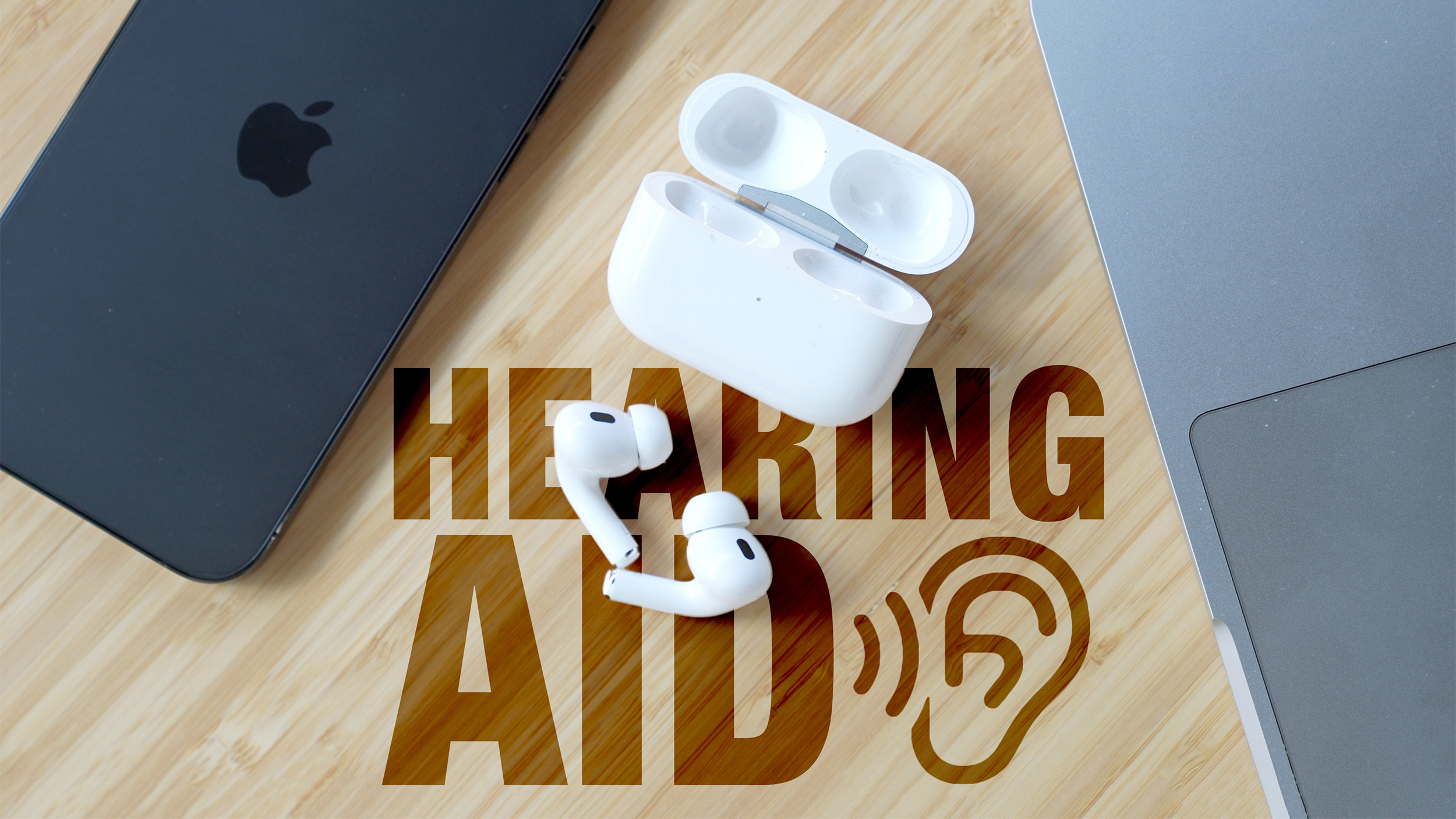
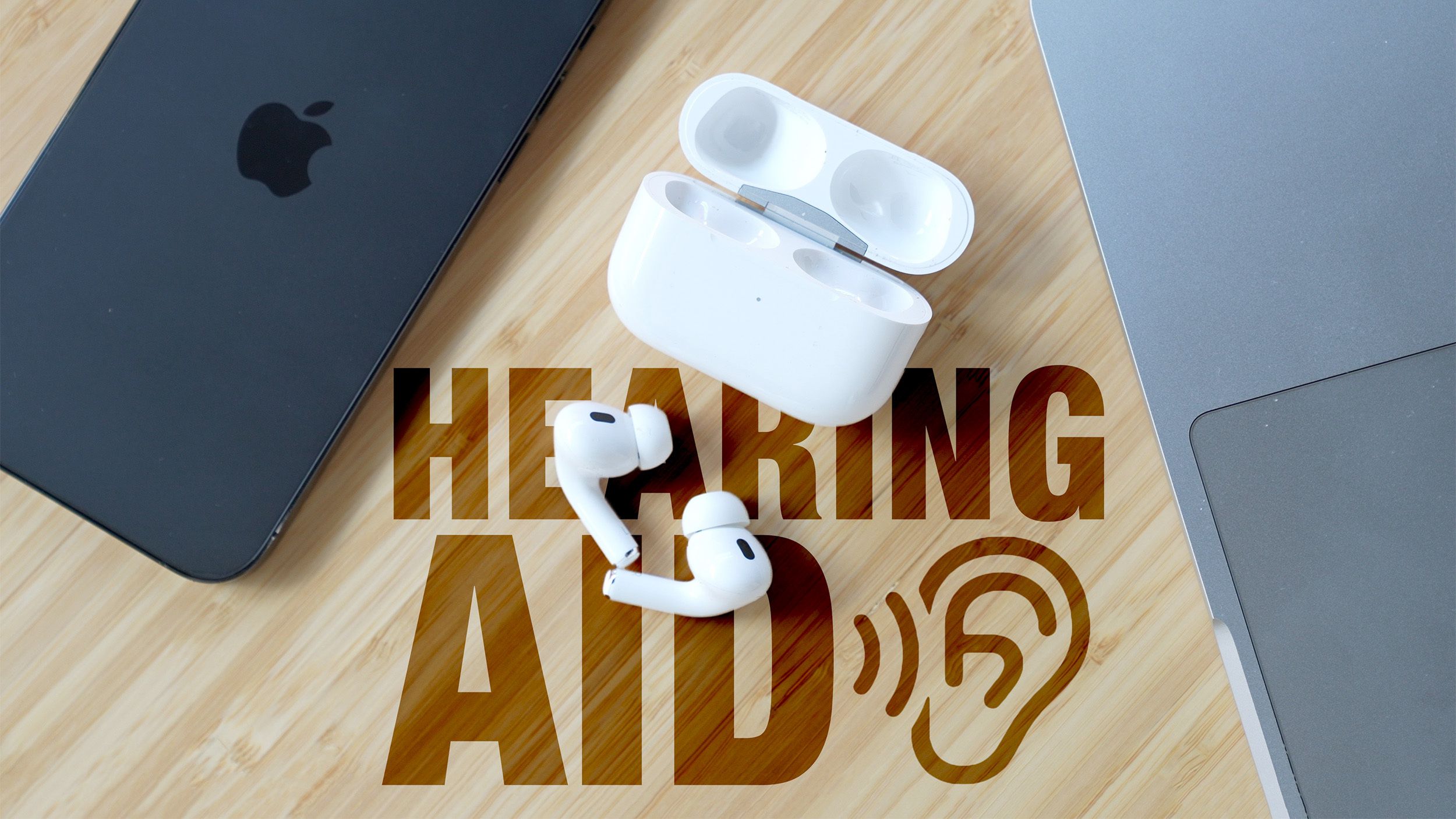
Apple has expanded its health-focused features to more countries. Starting now, users in Italy, Romania, and Czechia can use AirPods Pro 2 and AirPods Pro 3 as over-the-counter hearing aids, while those in Israel can receive hypertension alerts from their Apple Watch. This guide walks you through setting up both features step by step, ensuring you get the most out of these tools to improve hearing and monitor blood pressure.
What You Need
- AirPods Pro 2 or AirPods Pro 3 (for hearing aid features)
- iPhone or iPad running iOS 26 / iPadOS 26 or later
- Apple Watch Series 9 or later, or Apple Watch Ultra 2 or later (for hypertension alerts)
- Stable internet connection for initial setup
- Apple ID signed into iCloud
Step-by-Step Guide
Step 1: Check Compatibility and Update Software
Before starting, ensure your devices meet the requirements:
- Your AirPods Pro must be either the 2nd generation or 3rd generation model. Check in Settings > Bluetooth by tapping the “i” icon next to your AirPods.
- Your iPhone or iPad must be updated to iOS 26 / iPadOS 26 or later. Go to Settings > General > Software Update to install the latest version.
- For the Apple Watch, you need watchOS 11 or later (matching the iOS version). Update via the Watch app on iPhone.
- Confirm your region supports the feature. As of this expansion, the Hearing Aid feature is rolling out in Italy, Romania, and Czechia, and Hypertension alerts are available in Israel. If you’re elsewhere, these steps still apply once the feature reaches your country.
Step 2: Take a Hearing Test with AirPods Pro
The Hearing Aid feature relies on a personalized hearing profile created from a clinical-grade hearing test. Follow these steps:
- Ensure your AirPods Pro are connected to your iPhone or iPad.
- Open Settings > Accessibility > Hearing > AirPods Pro [Your Name] > Hearing Test.
- Tap Take a Hearing Test and follow the on-screen instructions. The test will play a series of tones at varying volumes through each earbud. Stay in a quiet environment.
- After completion, a hearing profile is automatically generated and saved to your device.
This profile adjusts sound for music, videos, phone calls, and ambient noise. The test typically takes 5–10 minutes.
Step 3: Enable the Hearing Aid Feature
Once you have a hearing profile, activate the hearing aid mode:
- Go to Settings > Accessibility > Hearing > AirPods Pro [Your Name] > Hearing Assistance.
- Toggle on Hearing Aid.
- You can also enable it from Control Center: long-press the volume slider, tap the AirPods icon, then select Hearing Aid under ‘Hearing Assistance.’
The feature amplifies surrounding sounds in real time, focusing on voices while reducing background noise. It’s designed for mild to moderate hearing loss and works best in face‑to‑face conversations.
Step 4: Customize Sound and Use Loud Sound Reduction
To protect your hearing from sudden loud noises, enable Loud Sound Reduction:
- Go to Settings > Accessibility > Hearing > AirPods Pro [Your Name] > Transparency Mode.
- Turn on Loud Sound Reduction.
- Adjust the threshold (default is 85 dB) to your preference. Lower numbers mean more aggressive reduction.
This setting works in both Transparency and Adaptive modes, automatically dampening high-decibel sounds (like sirens or construction noise) to prevent hearing damage, while still allowing you to hear important cues.
Step 5: Enable Hypertension Alerts on Apple Watch
Hypertension alerts notify you if the Apple Watch detects signs of chronically high blood pressure. Here’s how to set them up:
- On your iPhone, open the Health app.
- Tap the Browse tab, then go to Heart > Hypertension Notifications.
- Select Turn On and follow the prompts to grant permission for the watch to use heart rate sensor data.
- Ensure your Apple Watch is worn snugly on your wrist while sleeping—the feature analyzes heart rate data collected over a 30‑day period to identify patterns.
The watch will send an alert if it detects consistent elevated blood pressure trends. This is not a medical diagnosis but a prompt to consult a healthcare provider.
Step 6: Understand Alerts and Data Collection
Hypertension alerts are based on your heart rate sensor and require no additional equipment. The watch collects data during periods of inactivity (e.g., sleep) and averages it over 30 days. If the average exceeds a preset threshold (typically 130/80 mmHg equivalent), you’ll receive a notification. You can view your history in the Health app > Heart > Hypertension Notifications.
Note: This feature is only supported on Apple Watch Series 9, Series 10, and Ultra 2 and later. Older models cannot generate these alerts.
Tips for Best Results
- For hearing aid use: Take the hearing test in a quiet room and repeat it every few months to keep your profile accurate. Clean your AirPods Pro regularly to prevent wax buildup.
- For loud sound reduction: Experiment with threshold levels in moderately noisy environments (like a busy street) to find the balance between protection and awareness.
- For hypertension alerts: Wear your Apple Watch consistently, especially at night. Enable Sleep Focus to avoid unnecessary wake-ups, as alerts only appear when a trend is detected—not for single high readings.
- General: Keep all devices updated to the latest software. Both features rely on system algorithms that improve with updates.
- Consult a professional: These tools are helpful indicators but not substitutes for professional medical assessment. If you receive multiple alerts or experience hearing difficulties, schedule an appointment with a specialist.
With these steps, you can now leverage your Apple devices for better hearing health and early blood pressure awareness—all from the convenience of your AirPods and Apple Watch.